
Scheduled Messages
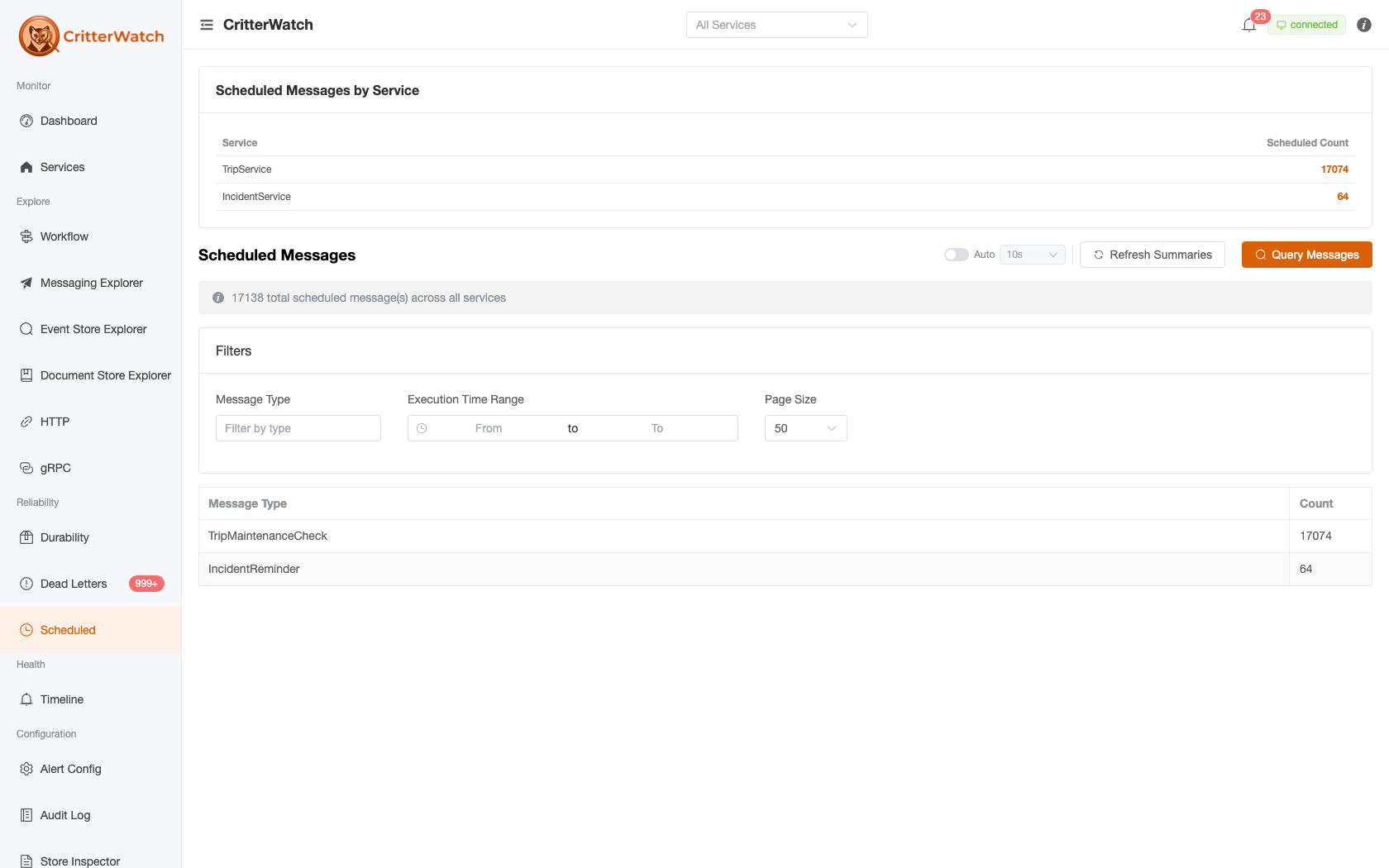
The Scheduled Messages view shows all messages queued for future delivery in your Wolverine services. These are messages scheduled with bus.ScheduleAsync(message, deliveryTime) or similar APIs that are waiting in the durable outbox.
Occurrences, not schedules. This page lists the individual envelopes waiting to be delivered. A recurring cron schedule's pending next occurrence appears here like any other, but the schedule itself — its cron expression, time zone and pause state — lives on the Schedule Explorer. Cancelling an occurrence here does not stop the schedule; the next one is computed and queued as normal.
Summaries
The page opens on counts: a Scheduled Messages by Service card (one row per service with its count), a banner with the total, and a table of message types with their counts. Click a service row to scope the page to that service, or a message-type row to load that type's messages. Refresh Summaries re-reads the counts, and the Auto switch re-polls every 5, 10, 30 or 60 seconds. Service scope comes from the global service selector in the header.
Scheduled Messages Grid
Query Messages loads the individual envelopes, one server page at a time. Each row shows:
| Column | Description |
|---|---|
| Message Type | The .NET type name of the scheduled message, with its namespace dimmed |
| Tenant | The tenant the message was scheduled for, read from the stored envelope. The column appears only when a listed message has one, and a message scheduled without a tenant shows a dash |
| Scheduled Time | When the message is due to be delivered, tagged Overdue once that time has passed |
| Destination | Where the message will be delivered |
| Sent At | When the message was originally scheduled |
| Attempts | Delivery attempts so far |
A line above the grid counts the overdue messages on the page. Each row's menu offers View Details, Edit, Reschedule and Cancel Message.
Filtering
The filter card offers:
- Message Type — filter by type name
- Execution Time Range — from/to bounds on the scheduled delivery time, in the display time zone, like the time you pick to reschedule or edit a message
- Page Size — rows fetched per query (25, 50 or 100)
Message Detail
View Details opens a panel with the message id, type, tenant (when it has one), scheduled time (with the Overdue tag), destination, sent time and attempts, and the Edit, Reschedule and Cancel actions. The listing does not carry the message body, so the panel does not show it.
Edit
Opens a dialog with two fields:
- Message Body (JSON) — the replacement payload. The current body is not loaded (the listing does not carry it), so the field starts as
{}and you supply the whole body; it must be valid JSON. - New Scheduled Time — the delivery time, starting at the current one.
Save sends EditScheduledMessage to the owning service, which replaces the message with a new one; the confirmation names the original and the new message ids.
Reschedule
Moves the delivery time without touching the body. Reschedule Selected does the same for every selected row.
Cancel
Permanently removes the scheduled message from the durable outbox. This is irreversible. The message will never be delivered. Requires confirmation.
Cancel Selected cancels the selected rows. Cancel All Matching cancels every message matching the filter the grid was queried with, on every page, not only the rows loaded; its confirmation quotes that total.
Scheduled Projection Rebuilds
A rebuild deferred from a projection row's Rebuild later… action, or a rewind deferred with the Rewind dialog's Later (Scheduling a rewind for later), is an ordinary scheduled message in the target service's own message store — that is the entire reason it is scheduled service-side — so it appears in this grid as a pending RebuildProjection (a deferred rewind, as a RewindSubscription), and Cancel / Reschedule here are how you call one off or move it. Scheduling has no duplicate guard (the store exposes no message bodies to compare), so a double-scheduled rebuild shows as two rows: cancel the one you don't want.
Agents get the same surface over MCP: query_scheduled_messages, cancel_scheduled_message and reschedule_scheduled_message — see the MCP tool catalog.
Overdue Messages
A scheduled message is overdue when its execute time has passed but it has not been delivered. Common causes:
- The service was not running when the message was due
- The service's durable outbox listener was paused
- A database connectivity issue prevented the scheduler from running
Overdue messages will typically be delivered as soon as the service resumes normal operation. There is no overdue filter: the grid tags each overdue row and counts them above the grid.
Multi-Tenant Scheduled Messages
How a service stores its tenants decides where the tenant shows up:
- A database per tenant. Each tenant's scheduled messages live in that tenant's own message database. The console queries every database the service reports, and edit and cancel go to the database the message came from.
- Conjoined tenants (one database). Every tenant shares one message store, so the database does not tell you whose message it is. The Tenant column does: it is read from each stored envelope. It also appears in the message detail and in the edit dialog, so you can see whose work you are about to cancel or reschedule.
Correction. Earlier versions of this page described a Tenant column and a Tenant filter. Neither existed: the listing carried no tenant until Wolverine started reading it from the envelope (wolverine#4666), and there is still no tenant filter. Filter by service and message type instead.